

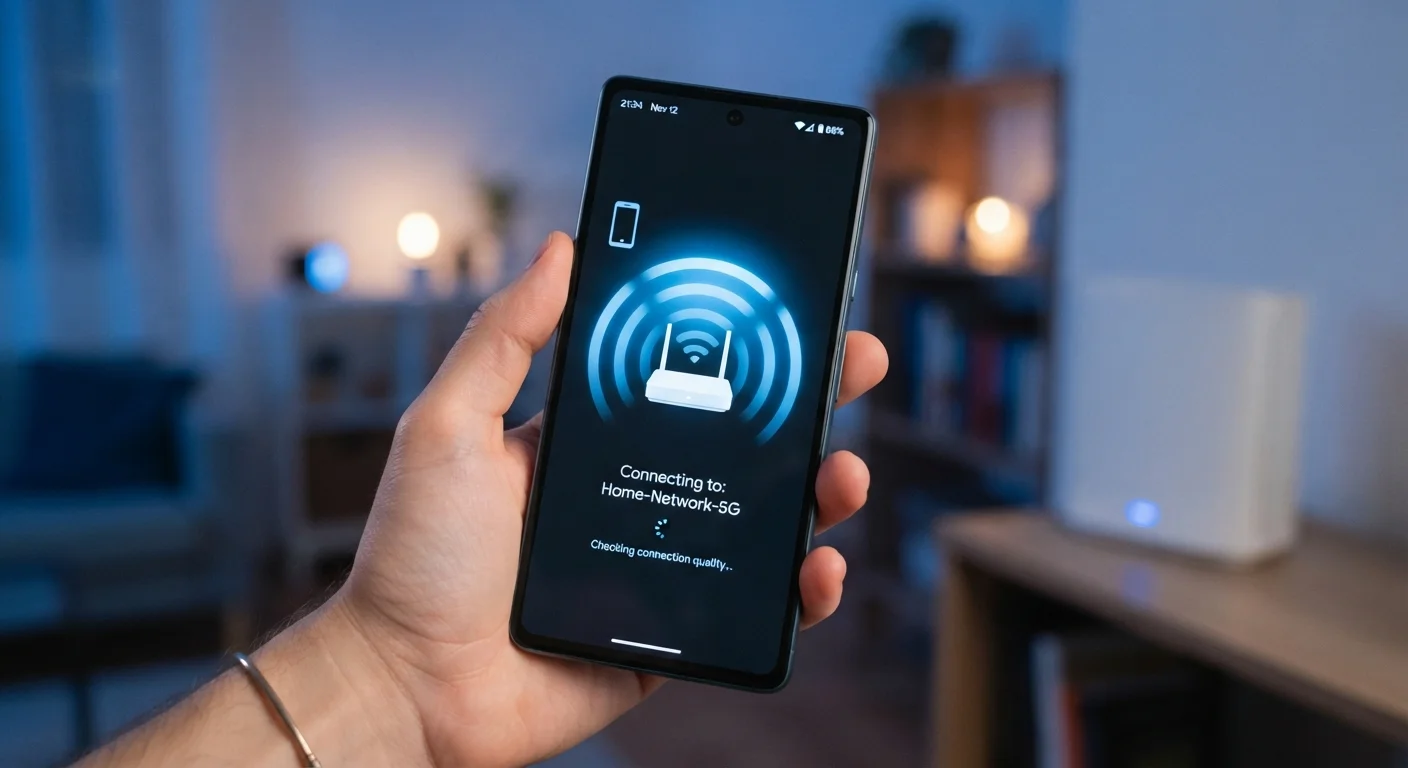
Step One: Finding the Network
Before your device can join a Wi-Fi network, it needs to know the network exists. Routers constantly broadcast short packets of information called beacon frames — roughly ten times per second. These beacons advertise the network's name (called the SSID), the wireless standard in use, and what security type is required.
Your device passively listens for these beacons on different radio channels. When you pull up your list of available networks, you're seeing a snapshot of the beacons your device has recently detected. It can also actively probe for specific networks it already knows — this is why your phone sometimes connects to a familiar network before you even open your settings.
Step Two: Authentication — Proving You Belong
Once you select a network and enter a password, the real work begins. On a modern WPA2 or WPA3 network, your device and the router go through a structured exchange called the four-way handshake. This process confirms that both sides know the correct password without ever transmitting the password itself over the air.
The handshake uses cryptographic math to generate a unique encryption key for your session. That key is what scrambles your data in transit, so other devices on the same network can't simply read your traffic. This is the core reason Wi-Fi passwords matter — they're not just gatekeepers, they're the foundation of your connection's security.
Check Your Router's Security Mode
On networks you manage yourself, WPA3 offers meaningfully stronger protections than WPA2, particularly against certain brute-force password attacks. Log in to your router's admin interface and check which security mode is enabled — many modern routers support WPA3 but don't enable it by default.
On networks you manage yourself, WPA3 offers meaningfully stronger protections than WPA2, particularly against certain brute-force attacks. Check your router's settings to see which mode it supports.
Step Three: Getting an Address via DHCP
Authentication establishes that your device is allowed on the network. But to actually send and receive data, it needs a unique identifier: an IP address. This is handled automatically by a protocol called DHCP.
Your device sends a broadcast message essentially asking, "Is there a DHCP server here? I need an address." The router — which typically runs a built-in DHCP server — responds with an available IP address, a lease duration (how long that address is reserved for your device), and additional details like the address of the DNS server your device will use to look up website names.
Once your device accepts that offer, it has everything it needs to communicate on the network. The whole DHCP exchange typically takes a fraction of a second. Understanding internet speeds becomes more meaningful once you realize traffic flows through all these layers before a single byte of content reaches you.
IP Addresses Are Temporary by Design
The IP address your device receives from DHCP is leased, not permanent. When the lease expires — typically after 24 hours or when you disconnect — it can be reassigned to another device. This is normal and intentional: it conserves the available pool of addresses on the local network. If your device reconnects quickly, it usually requests the same address and gets it back.
When Things Go Wrong
Most connection failures happen at one of these three stages. If your device can't find the network, it may be out of range or the router may have stopped broadcasting. If authentication fails, the password is wrong or the router's security settings have changed. If DHCP fails, the router may have run out of available addresses or experienced an internal error — which is often why a simple router restart fixes stubborn connectivity issues. Restarting your device resets the network stack and triggers a fresh DHCP request, clearing many of these stuck states automatically.
Wi-Fi also competes with other devices for radio spectrum. In dense environments with many networks, interference can degrade connection quality even after a successful handshake. Wired connections sidestep this entirely, which is one reason they remain relevant in reliability-critical situations.
~2 sec
Typical time to complete full Wi-Fi handshake
Most modern devices complete discovery, authentication, and DHCP assignment in roughly one to three seconds on a responsive network.
10x/sec
Frequency of router beacon broadcasts
The IEEE 802.11 standard sets the default beacon interval at 100ms, meaning routers announce their presence approximately ten times every second.
WPA3
Current strongest consumer Wi-Fi security standard
WPA3 was introduced by the Wi-Fi Alliance and addresses several known vulnerabilities present in its WPA2 predecessor.
Frequently Asked Questions
This usually means your device successfully joined the local network but couldn't reach the wider internet. Common causes include router issues, an overloaded network, or your ISP experiencing an outage. The connection to your router is working, but the router's connection upstream is not.
Your device stores credentials for known networks. When you 'forget' a network, it deletes those saved settings and forces a fresh authentication process. This can resolve issues where the stored password or session data has become corrupted or outdated.
Open networks without passwords transmit data without encryption, meaning traffic could potentially be observed by others on the same network. On password-protected networks using WPA2 or WPA3, data is encrypted between your device and the router.
Wi-Fi signal strength diminishes with distance and through obstacles like walls. As signal weakens, your device and router negotiate a lower data rate to maintain a stable connection, which results in slower effective speeds.
Your device caches the network credentials and sometimes the previously assigned IP address. This lets it skip or shorten several negotiation steps, reducing the time needed to re-establish the connection.
The content on this site is for informational purposes only and is not a substitute for professional advice. Always consult a qualified professional for guidance specific to your situation.