

Two Different Questions, One Confusing Label
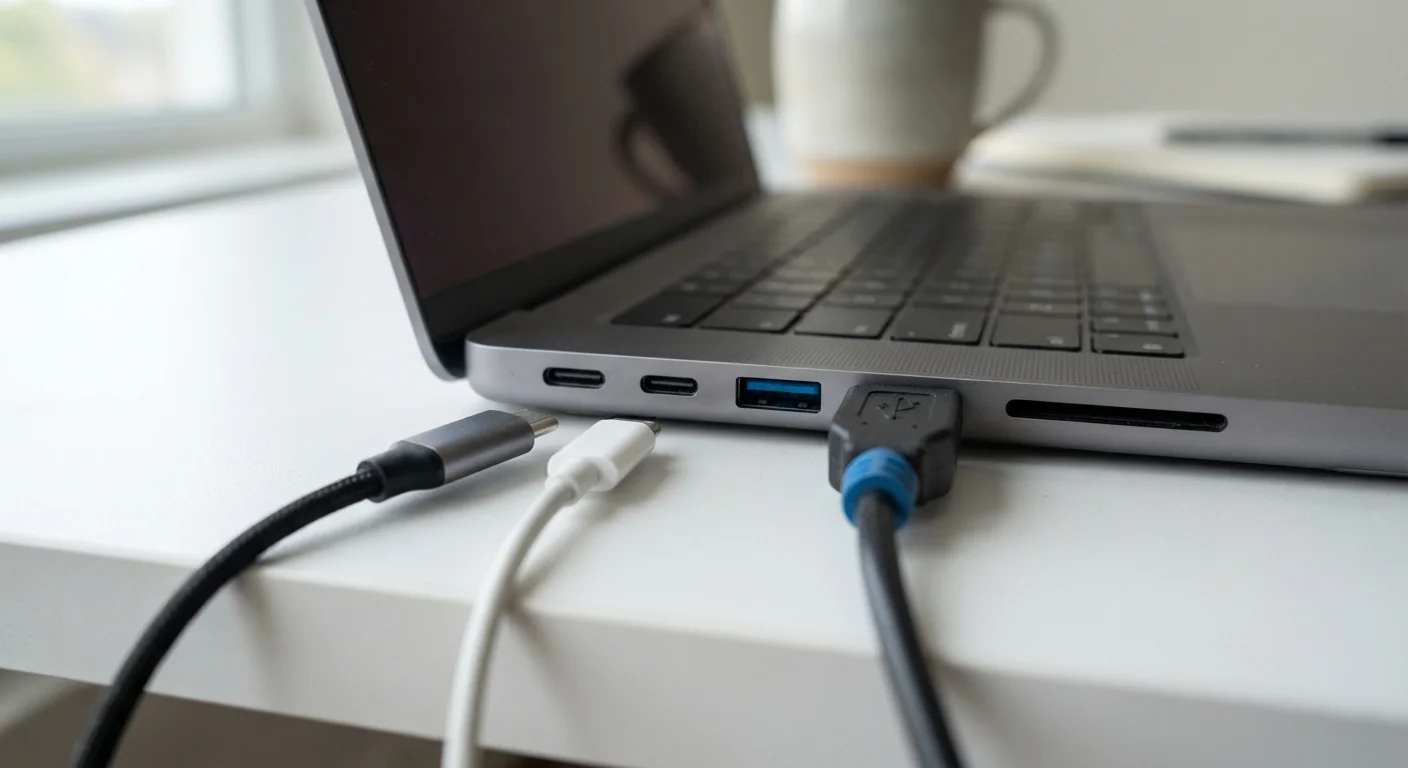
When people say "USB," they're often mixing up two separate things: the physical shape of the connector (called the connector type) and the data transfer speed of the standard (called the USB version or generation). A label like "USB 3.0" describes how fast data moves — not what the port looks like. A label like "USB-C" describes the shape of the plug — not necessarily how fast it is.
This distinction matters because any given port is defined by both properties at once. A USB-C port can be slow or fast depending on what's inside it. A USB-A port can also support USB 3.0 speeds. Understanding this two-part system is the key to decoding almost any USB label you encounter.
| USB-A shape | Flat rectangle, directional (one correct orientation) |
| USB-C shape | Oval, reversible (works either way up) |
| USB 2.0 max speed | 480 Mbps (USB Implementers Forum specification) |
| USB 3.0 max speed | 5 Gbps (also labeled USB 3.1 Gen 1 or USB 3.2 Gen 1) (USB Implementers Forum specification) |
| USB4 max speed | Up to 40 Gbps (requires USB-C connector) (USB Implementers Forum specification) |
| Blue port color | Commonly indicates USB 3.0 or faster, but not universally standardized |
| USB-C capable of video output | Yes, via DisplayPort Alt Mode or with appropriate adapter |
Connector Types: What the Port Looks Like
USB-A is the rectangular connector that most people recognize from a decade of experience plugging in flash drives, keyboards, and phone chargers. It's directional — you can only insert it one way (which is why it sometimes takes two tries). USB-A ports remain common on desktops, laptops, TVs, car dashboards, and wall chargers.
USB-C is the newer, oval-shaped connector that's reversible — it goes in either way. It's physically smaller than USB-A, which is why it has become standard on smartphones, tablets, and thin laptops. USB-C is also capable of carrying more than just data: it can transmit video signals (DisplayPort or HDMI, via adapters) and deliver significantly more power than older connectors.
Micro-USB and Mini-USB are older small-form connectors still found on budget accessories, older Android phones, and some cameras. They are being gradually replaced by USB-C. Micro-USB is directional and noticeably fragile compared to USB-C.
USB
Universal Serial Bus — a standardized connection system for transferring data and power between devices. Both the physical connectors and the speed standards carry the USB name, which is the root of most labeling confusion.
Connector type
The physical shape and size of a USB plug or port — such as USB-A, USB-C, or Micro-USB. Connector type determines which cables physically fit, but does not determine speed.
USB generation
The version of the USB speed standard a port or cable supports (e.g., USB 2.0, USB 3.2, USB4). Higher generations support faster data transfer rates.
SuperSpeed (SS)
A label used by the USB Implementers Forum to mark ports and cables operating at USB 3.0 speeds (5 Gbps) or faster. Often shown as an icon next to the port.
Thunderbolt
A high-speed interface standard developed by Intel that uses the USB-C physical connector. Thunderbolt 3 and 4 ports are backward compatible with USB devices but offer additional capabilities like higher throughput and daisy-chaining.
Alt Mode
A USB-C feature that allows the connector to carry non-USB signals, such as DisplayPort video or HDMI, over the same physical cable. Requires both the port and cable to support the specific Alt Mode.
Speed Standards: What the Version Number Means
USB version numbers describe how fast data can move through the connection. Here's a practical breakdown:
- USB 2.0 — Released in 2000, maximum theoretical speed of 480 Mbps. Still adequate for keyboards, mice, and low-resolution webcams, but slow for transferring files. A USB 2.0 port is often black inside.
- USB 3.0 / USB 3.1 Gen 1 / USB 3.2 Gen 1 — These three labels all refer to the same performance tier: up to 5 Gbps. The USB standard has been renamed multiple times, which causes most of the confusion on spec sheets. A USB 3.0 port is typically identified by a blue color inside the connector.
- USB 3.1 Gen 2 / USB 3.2 Gen 2 — Up to 10 Gbps. Better for external SSDs and high-speed storage.
- USB4 — The current top tier, supporting up to 40 Gbps in its highest configuration and requiring USB-C connectors. USB4 is also compatible with Thunderbolt 3 and 4 devices in many implementations.
For context on how transfer speeds relate to real-world file sizes, see the guide to bits, bytes, and bandwidth.
83×
Speed increase from USB 2.0 to USB4 Gen 3
USB 2.0 tops out at 480 Mbps; USB4 Gen 3×2 reaches 40 Gbps — based on USB Implementers Forum published specifications.
240W
Maximum power delivery over USB-C (USB PD 3.1)
The USB Power Delivery 3.1 specification, published by the USB Implementers Forum, raised the ceiling to 240 watts — enough to charge most laptops.
3+
Times USB 3.0 has been renamed since 2013
The USB-IF has renamed the USB 3.0 specification multiple times (USB 3.1 Gen 1, USB 3.2 Gen 1), creating significant labeling confusion for consumers.
Practical Tips for Using What You Have
Check the icon, not just the color. USB 3.0 ports are often blue, but not always. Look for the SS (SuperSpeed) symbol or a lightning bolt icon printed next to the port. These markings are more reliable than color alone.
A USB-C port isn't automatically fast. Some budget devices include USB-C ports that only run at USB 2.0 speeds. Check the device spec sheet — the connector shape tells you nothing about speed on its own. For a broader introduction to reading device specs, the plain-English device specs guide is a useful companion.
Cables matter as much as ports. A USB-C cable rated for USB 2.0 will bottleneck a fast port. If you need speed, confirm the cable is rated for USB 3.2 or USB4. Cables for high-wattage charging should be rated accordingly — see what the numbers on your charger mean for more on this.
Adapters work, with caveats. A USB-A to USB-C adapter lets you connect a newer cable to an older port, but the connection will be limited to whatever the older port supports. You cannot get USB 3.0 speeds through a USB 2.0 port regardless of the adapter or cable used.
Thunderbolt Ports Look Like USB-C
Thunderbolt 3 and Thunderbolt 4 ports use the same USB-C physical connector as standard USB-C ports. You can tell them apart by looking for a small lightning bolt icon next to the port rather than the USB trident symbol. Thunderbolt ports accept USB-C devices and cables, but a standard USB-C cable plugged into a Thunderbolt port will only run at USB speeds — not Thunderbolt speeds.
The content on this site is for informational purposes only and is not a substitute for professional advice. Always consult a qualified professional for guidance specific to your situation.