

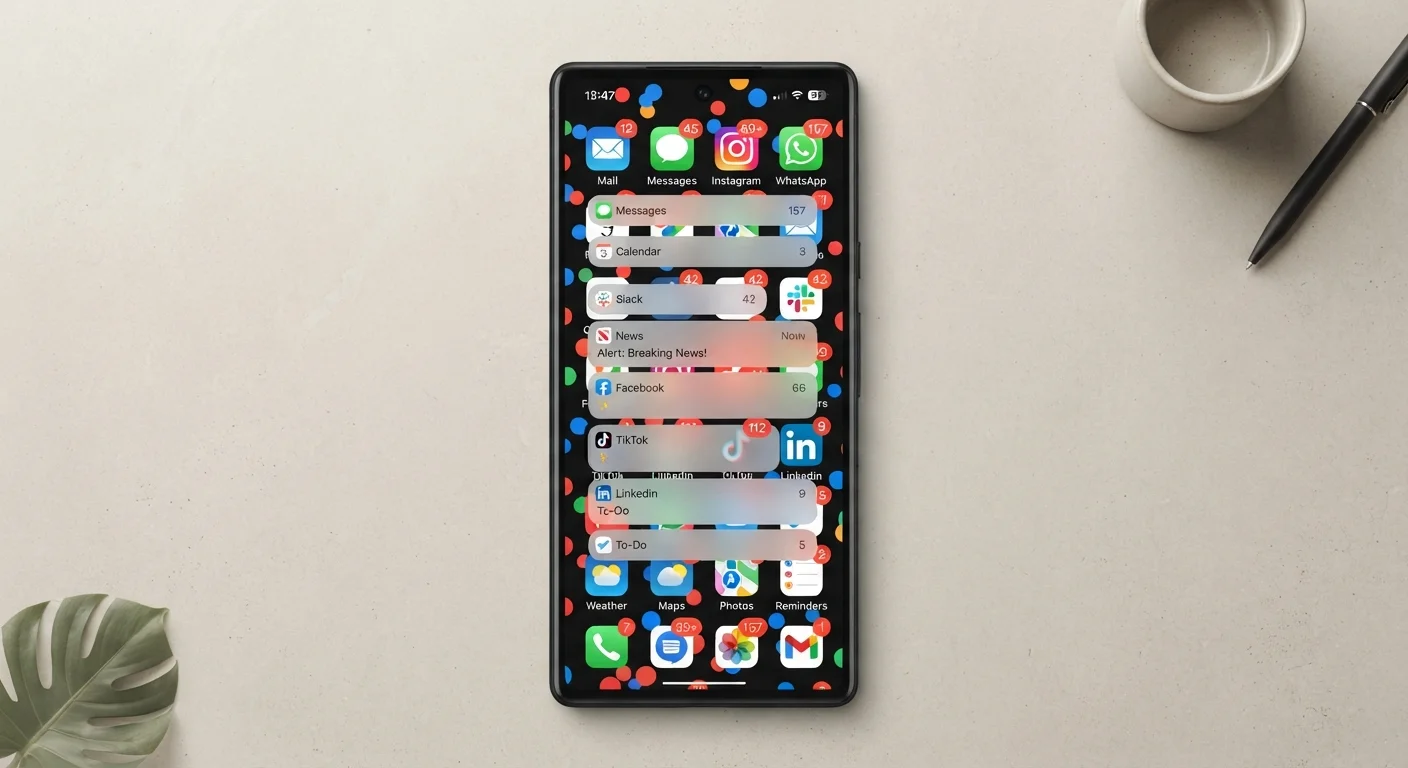
Why Notification Volume Became a Problem
Smartphones were not originally designed as always-on alert systems. Early push notification infrastructure was introduced as a convenience — a way for a single app to tell you something genuinely important had happened. Over time, app developers recognized that notifications drove re-engagement. The more often an app could pull you back to it, the better its retention metrics looked. The result was a gradual arms race: more pings, more badges, more sounds.
Today, a phone with default settings can deliver dozens of notifications per hour. Each one triggers what researchers sometimes call an attentional interrupt — a momentary cognitive switch that costs focus even when you don't consciously respond. Studies on workplace productivity have long suggested that recovering full concentration after an interruption can take considerably longer than the interruption itself. Your phone is, in many ways, engineered to create those interruptions at scale.
Understanding this mechanism is the first step toward addressing it. You are not obligated to accept your phone's default behavior. Every notification that reaches your screen did so because an app was granted permission — and permissions can be revoked.
Notifications Can Affect Safety on the Road
Even a phone buzzing in your pocket while driving creates a cognitive pull. Research into distracted driving suggests that the urge to check a notification diverts mental attention before you even reach for your device. Review the cognitive load risks of phone use while driving and consider using your phone's driving-focused Do Not Disturb mode whenever you're behind the wheel.
What You'll Need Before You Start
This process requires no additional apps and no technical expertise — just access to your phone's built-in settings menus and a willingness to make deliberate choices about which apps have earned access to your attention.
What you will need
Phone Settings App
The primary interface for reviewing and adjusting notification permissions for every installed app.
Focus Mode / Do Not Disturb
Built-in OS feature that suppresses or filters notifications during specified time windows or activities.
Notification Summary (iOS) or Notification Channels (Android)
Platform-specific tools that allow batching or categorizing alerts so less-urgent ones are grouped and delivered at set times.
Step-by-Step: Taking Back Control
Work through the following steps in order. The first two are diagnostic; the remaining steps are where the changes happen. Give yourself 20–30 minutes for the full process — rushing through it leads to settings you'll want to revisit immediately.
Audit Every App's Notification Permission
Open your phone's Settings app and navigate to Notifications (iOS) or Apps & Notifications (Android). You'll see a list of every installed app alongside its current permission status. Scroll through the entire list — most people discover apps they've completely forgotten are running and sending alerts.
As you review each entry, ask yourself: Does this app need real-time access to my attention? For the majority, the honest answer is no.
Categorize Apps Into Priority Tiers
Before toggling anything off, mentally group your apps into three tiers:
- Tier 1 — Time-sensitive: Phone calls, SMS, calendar alerts, messaging apps from people you must reach quickly, security authentication apps.
- Tier 2 — Useful but not urgent: Email, productivity tools, news apps, navigation reminders.
- Tier 3 — Noise: Social media activity feeds, marketing promotions, game updates, and most app badges that don't require action.
This triage framework makes the next steps faster and more decisive.
Disable or Reduce Notifications for Tier 3 Apps
Return to the Notifications settings and disable all notifications for every Tier 3 app. For apps where you want minimal presence — such as a shopping app you use occasionally — disable banners and sounds but leave the badge count enabled so you can check it when you choose to open the app.
On iOS, you can also enable Notification Summary, which bundles lower-priority alerts and delivers them as a single digest at a scheduled time — typically morning and evening. Android's notification channels let you disable specific alert categories within an app without silencing it entirely.
Configure Alert Styles for Tier 2 Apps
Tier 2 apps deserve attention — just not constant interruption. For these, consider switching from banner alerts (the pop-up that covers your screen) to list-only notifications, which simply add to your notification tray without demanding immediate attention.
Also disable persistent sounds and vibrations for email and non-urgent messaging apps. A silent badge indicating "3 emails" gives you the information when you choose to look, rather than fragmenting your focus mid-task.
Set Up a Focus Mode for Deep Work and Sleep
Both iOS (Focus) and Android (Do Not Disturb / Modes) support customizable focus profiles that automatically filter notifications based on time, location, or app. Create at minimum two profiles:
- Sleep: Allow only emergency contacts and alarms. Schedule it to activate automatically at your bedtime.
- Work / Focus: Allow Tier 1 apps only. Suppress everything else during your core productive hours.
These profiles can be set to activate on a schedule or triggered manually when you need concentration. This is particularly important given what research shows about how even passive phone notifications affect cognitive load — a dynamic explored further in the hands-free driving distraction research.
Review App Permissions Alongside Notifications
Notification access often correlates with broader app permissions. While you're in settings, check which apps have been granted access to location, contacts, microphone, or background refresh — these permissions also affect how frequently apps can generate alerts. Revoking unnecessary permissions often reduces notification volume as a side effect.
For a more thorough walkthrough of permission hygiene, the device maintenance checklist covers this alongside software updates and storage management as part of a complete phone upkeep routine.
Schedule a Monthly Notification Check-In
Apps update frequently, and updates can silently reset notification permissions or introduce new alert categories. Set a recurring monthly reminder — ironically, a calendar notification works well here — to spend five minutes reviewing your settings. New app installs should also trigger an immediate notification review before you ever let the app ping you for the first time.
Pair Notification Control With Broader Device Hygiene
Notification settings are just one layer of a well-maintained phone. Reviewing app permissions — which directly relate to which apps can send alerts — is also a smart security habit. The guide on tech habits that quietly make devices less secure covers why permission review matters beyond just your notification tray.
Common Pitfalls and How to Avoid Them
The most frequent mistake people make is treating notification management as a one-time task. App updates, new installs, and OS changes can all alter your settings. Building a brief monthly review into your routine ensures the work you do today stays effective over time.
Don't Silence All Notifications Indiscriminately
Turning off every notification sounds appealing but can cause you to miss genuinely important alerts — security codes, calendar reminders, urgent messages from family, or app-based two-factor authentication prompts. The goal is selective control, not a blanket mute. Work through each app category deliberately rather than using a single off switch.
A second pitfall is conflating notification control with complete disconnection. The goal here is not digital minimalism for its own sake — it's ensuring that the alerts reaching you are ones you've chosen to receive, at times and in formats that fit how you actually live and work. That distinction matters. A well-configured phone still keeps you informed; it simply stops treating every app's marketing impulse as equally worthy of your attention as a message from someone you care about.
If you're also thinking about broader device health and security alongside your notification settings, the explanation of what software updates actually change is a useful companion read — OS updates frequently include improvements to notification management tools themselves.
The content on this site is for informational purposes only and is not a substitute for professional advice. Always consult a qualified professional for guidance specific to your situation.