

Start here
What Two-Factor Authentication Actually Is
Build understanding
The Three Types of Authentication Factors
See it in practice
Common Forms of 2FA You'll Encounter
Understand why it matters
Why 2FA Matters Even If Your Password Is Strong
Take action
How to Start Using Two-Factor Authentication
What Two-Factor Authentication Actually Is
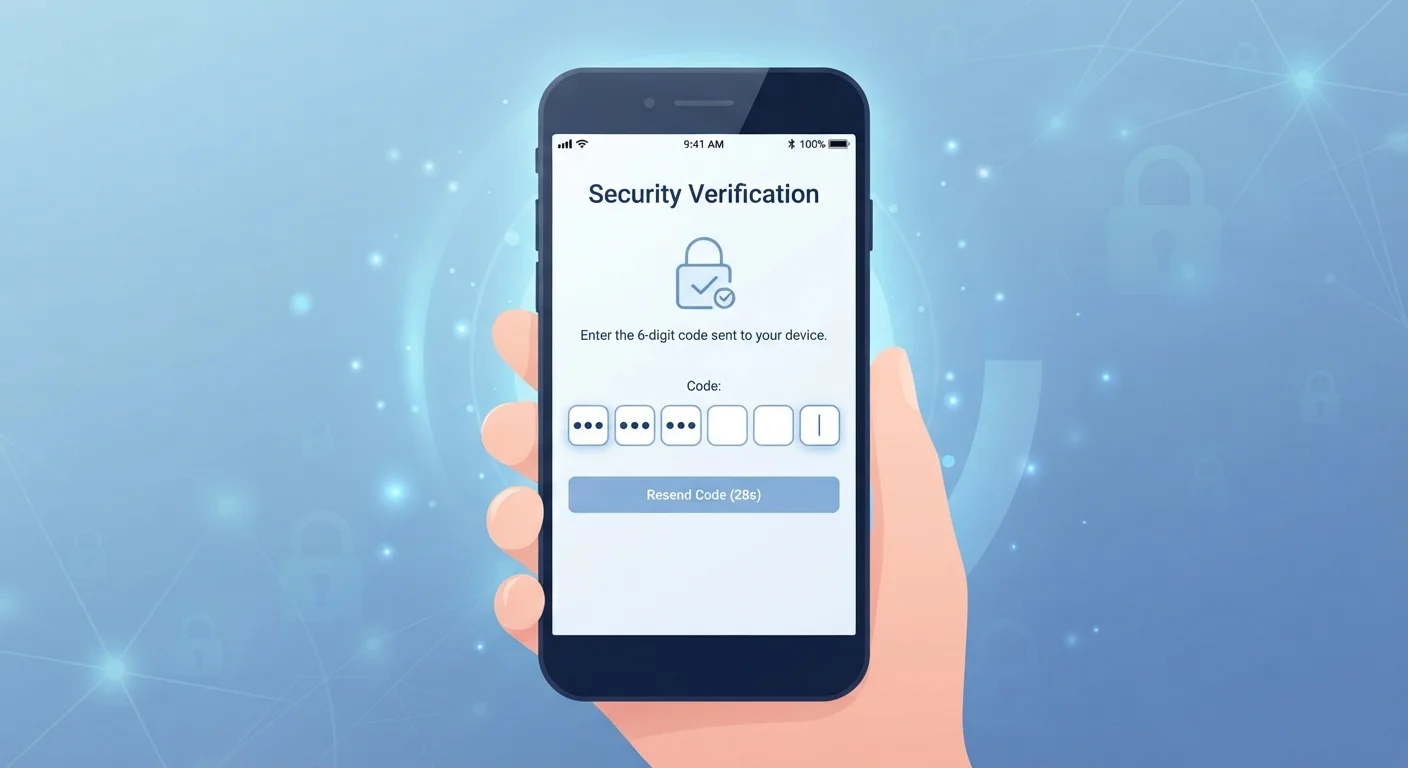
When you log into an account with only a password, you are using single-factor authentication — one piece of evidence that you are who you claim to be. Two-factor authentication (2FA) requires a second, independent piece of evidence on top of that password before access is granted.
The core logic is straightforward: even if someone obtains your password, they still cannot get into your account without also possessing or controlling the second factor. The two pieces of evidence are kept deliberately separate, so compromising one does not automatically surrender the other.
This concept is sometimes called multi-factor authentication (MFA) when more than two factors are used, though two factors covers the vast majority of everyday use cases. You may see either term used interchangeably in account settings.
Authentication
The process of verifying that someone is who they claim to be before granting access to a system or account.
Two-Factor Authentication (2FA)
A login method that requires two separate forms of identity verification — typically a password plus a code or device — before access is allowed.
One-Time Password (OTP)
A temporary numeric code, usually valid for 30–60 seconds, generated by an app or sent via text. It can only be used once and then expires.
SIM Swapping
A type of attack where a criminal convinces a mobile carrier to transfer a victim's phone number to a device the attacker controls, allowing them to receive that person's SMS codes.
Hardware Security Key
A small physical device that plugs into a USB port or taps via NFC to confirm your identity. It is considered the most phishing-resistant form of two-factor authentication.
Authenticator App
A smartphone application that generates time-based one-time codes for 2FA without relying on your mobile network, making it more secure than SMS-based codes.
The Three Types of Authentication Factors
Authentication factors fall into three broad categories. Understanding these categories clarifies why combining two of them is meaningfully stronger than using two things from the same category.
- Something you know — a password, PIN, or security answer. This is the most common factor, and also the one most frequently stolen or guessed.
- Something you have — a physical device such as a smartphone running an authenticator app, or a hardware security key you plug into a computer.
- Something you are — a biometric like a fingerprint, face scan, or voice pattern that is unique to your body.
Standard 2FA pairs something you know (your password) with something you have (your phone or security key). Because these exist in entirely different domains, an attacker would need to compromise both independently — a substantially harder task than stealing a password alone. For more context on how modern login security is evolving, see how modern authentication actually works.
Common Forms of 2FA You'll Encounter
Not all second factors offer the same level of protection. Here are the most widely used options, from most common to most secure:
- SMS text codes
- A one-time numeric code sent to your phone number. Easy to set up, but vulnerable to SIM-swapping attacks where an attacker tricks a carrier into transferring your number to a device they control.
- Authenticator apps
- Apps such as Google Authenticator, Authy, or Microsoft Authenticator generate time-based codes that refresh every 30 seconds. These codes are generated locally on your device and are not transmitted over the cellular network, making them more resistant to interception.
- Push notifications
- Some services send a prompt to a trusted app asking you to approve or deny a login attempt with a single tap. Convenient and secure, though users should always verify they initiated the login before approving.
- Hardware security keys
- Physical devices (commonly USB or NFC-based) that you physically connect or tap to authenticate. These are the most phishing-resistant option available and are favored for high-security accounts.
Prioritize an Authenticator App When Possible
When a service offers both SMS and an authenticator app as 2FA options, the app is the stronger choice. Codes generated locally on your device are not exposed to mobile network vulnerabilities. Setting up an authenticator app takes about the same time as SMS verification and meaningfully raises your account's security floor.
Why 2FA Matters Even If Your Password Is Strong
A strong, unique password is foundational — but it is not sufficient on its own. As explained in our guide to why passwords get stolen, credentials are compromised through data breaches at third-party services, phishing attacks, and credential-stuffing tools — not just weak choices. None of these require a password to be guessable; they simply steal it directly.
Once a password is in the hands of an attacker, it is immediately usable — unless a second factor blocks the path. With 2FA enabled, a stolen password becomes significantly less useful. The attacker would also need real-time access to your phone or security key, which dramatically increases the effort and coordination required.
Approving Unexpected Push Notifications Is Risky
If you receive a push notification or 2FA code request that you did not initiate, do not approve it. This is a signal that someone else has your password and is attempting to log in. Deny the request and change your password immediately. Fatigue-based attacks — where attackers send repeated approval requests hoping you'll tap 'allow' to stop the notifications — are a known technique.
It's also worth examining the assumptions that quietly make accounts vulnerable — many users believe their accounts aren't valuable enough to be targeted, which is itself a security risk.
How to Start Using Two-Factor Authentication
Enabling 2FA takes only a few minutes for most services. Here is a general approach:
- Locate security settings. In most apps and websites, look for a section labeled Security, Privacy, or Account Settings. The 2FA option is often called Two-Step Verification or Login Verification.
- Choose your second factor. If the service supports an authenticator app, select that option over SMS when possible for stronger protection.
- Save your backup codes. Most services generate one-time recovery codes during setup. Store these somewhere secure and offline — a printed sheet in a safe place works well.
- Verify it works before relying on it. Log out and log back in to confirm your second factor is functioning correctly before you depend on it.
Prioritize your email account first, since it can be used to reset passwords on virtually every other service you use. Banking and financial accounts should follow. Review tech habits that quietly make devices less secure to understand how 2FA fits into a broader security posture.
NIST Digital Identity Guidelines
The National Institute of Standards and Technology publishes publicly accessible guidelines on authentication best practices, offering an authoritative reference on why certain factors are considered stronger than others.
Have I Been Pwned
A free tool that lets you check whether your email address has appeared in known data breaches — useful for understanding whether your credentials may already be circulating among attackers.
Frequently Asked Questions
Two-factor authentication (2FA) is a security method that asks you to prove your identity in two separate ways before letting you into an account. Typically, that means entering your password plus a time-sensitive code sent to your phone or generated by an app. Both pieces must be correct for access to be granted.
SMS-based 2FA is significantly better than no 2FA at all. However, it is considered weaker than authenticator apps because text messages can be intercepted through SIM-swapping attacks. For most everyday accounts, SMS codes provide meaningful protection; for high-value accounts like banking or email, an authenticator app is a stronger choice.
Most services provide backup codes when you first set up 2FA — store these in a safe place offline. Many services also allow account recovery through verified email or identity verification. Setting up 2FA on multiple devices or saving backup codes in advance prevents most lockout scenarios.
The extra step typically adds 10–15 seconds to the login process. Many services offer a 'trusted device' option that remembers your verified devices for a set period, so you only perform the full two-step process on new or unrecognized devices.
No security measure is completely immune, but 2FA substantially raises the difficulty and cost of an attack. Phishing pages can sometimes trick users into handing over both their password and a live 2FA code simultaneously, which is why being alert to suspicious login pages matters. Hardware security keys are the most phishing-resistant form of 2FA available.
Start with accounts that protect the most sensitive information or control access to others: your primary email, banking and financial accounts, and any account with saved payment methods. Email is especially critical because a compromised inbox can be used to reset passwords on almost every other account you own.
The content on this site is for informational purposes only and is not a substitute for professional advice. Always consult a qualified professional for guidance specific to your situation.