

Summary

22 items · 30–60 minutes

Why Setup Matters More Than People Think

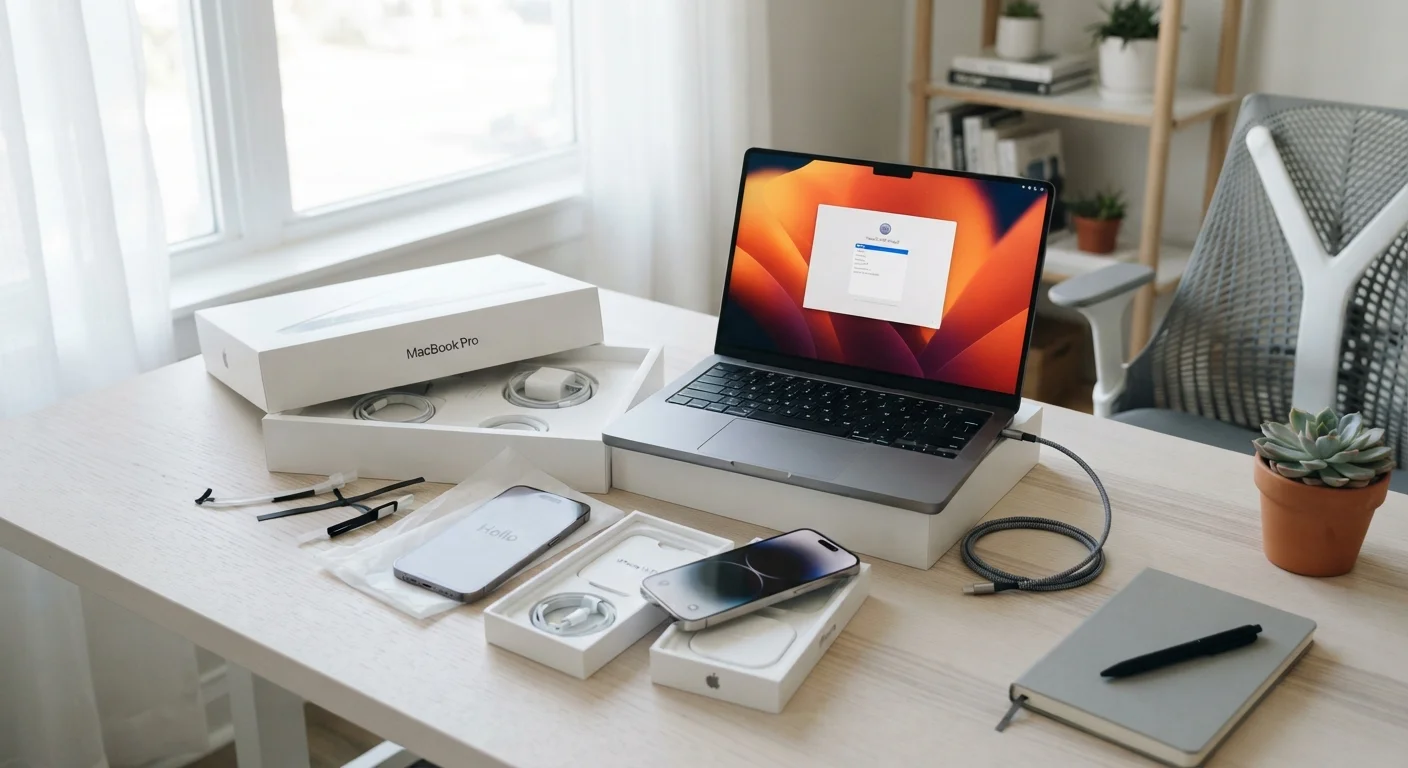
Unboxing a new phone, tablet, or laptop feels straightforward — follow the prompts, sign into your accounts, and you're done. But that quick-start flow is designed for convenience, not security or longevity. It gets you running fast while quietly skipping steps that matter enormously once you're actually using the device day to day.

The result is a device that works but leaves loose ends: old accounts still connected, automatic backups turned off, software already behind on patches, default privacy settings left wide open. None of these feel urgent on day one. They become urgent the moment something goes wrong.

This checklist walks through what a complete setup actually looks like — covering security, accounts, backups, and basic configuration — so you start with a clean, tight foundation rather than a tangle you'll have to sort out later. It applies to phones, tablets, and laptops running any major operating system.

If you're also setting up or passing on an older device alongside a new one, see our guide to preparing an old device before it leaves your hands to handle that side of the transition properly.

Software and Security Foundations

Install all available system updates before doing anything else — new devices often ship with software that's already weeks behind on patches. Must
Set a strong, unique screen lock — use a long PIN, password, or biometric (fingerprint or face unlock) rather than a simple 4-digit code. Must
Enable automatic updates for both the operating system and apps so security patches apply without requiring manual intervention. Must
Turn on the device's built-in firewall if you're setting up a laptop, and verify it's active rather than assuming it defaulted on. Should
Enable full-disk encryption if it isn't on by default — modern iPhones and Android devices encrypt automatically, but Windows laptops often require manual activation of BitLocker. Must

Account Setup and Access Control

Create or sign into your primary account (Apple ID, Google Account, or Microsoft account) using a strong, unique password you don't reuse elsewhere. Must
Activate two-factor authentication (2FA) on your primary account immediately — this single step blocks the overwhelming majority of unauthorized account access attempts. Must
Set up a password manager and configure it to work with your new device's browser and apps, rather than relying on saved passwords in a single browser. Should
Review which email and social accounts you're connecting — only add accounts you actively use, and remove any legacy accounts you no longer need. Should
Configure account recovery options (backup email, recovery phone number) while you're in the account settings, not after something goes wrong. Must

Backups and Data Protection

Turn on automatic cloud backup for photos, contacts, and app data — verify it completes at least one full backup before you start storing anything important. Must
If you're transferring data from an old device, confirm that contacts, messages, and app data arrived correctly before wiping the old device. Must
Set your backup frequency to daily if the option is available — default settings sometimes only back up when plugged in and connected to Wi-Fi, which may not happen often. Should
Note where your backup is stored (which cloud account, which service) and confirm you can access it — this matters when you eventually replace this device. Should

Privacy and Permissions

Review location permissions for each app — set most to 'While Using' rather than 'Always,' and deny location access entirely for apps that have no legitimate need for it. Must
Check microphone and camera permissions and restrict access to apps that require them for their core function only. Must
Turn off or limit ad tracking — both iOS and Android offer a setting to reduce personalized ad tracking across apps. Should
Disable any analytics or diagnostic data sharing if you'd prefer not to send usage information to the device manufacturer by default. Nice to have

Practical Configuration

Connect to your home Wi-Fi and verify the network uses WPA2 or WPA3 encryption — avoid using open networks without a VPN for anything sensitive. Must
Set up Find My Device (or equivalent) so the device can be located or remotely wiped if it's lost or stolen. Must
Adjust display, notification, and accessibility settings to match your preferences now — leaving defaults often means living with settings you'd never have chosen. Nice to have
Register the device with the manufacturer if a warranty or support registration is offered — this documentation matters if you need repair or replacement. Should

Tools You'll Need to Work Through This Checklist

You don't need anything exotic to complete this setup — but having a few things ready before you start will prevent interruptions mid-process.

Required

Password Manager

Generates and stores strong, unique passwords for every account connected during setup.

Required

Authenticator App

Provides two-factor authentication codes for your primary accounts without relying on SMS, which is less secure.

Required

Existing device or printed credentials

Needed to look up account passwords, recovery codes, or two-factor backup codes when signing in during setup.

Required

Cloud storage account

Stores your backup data — confirm login credentials before setup so backups start working immediately.

Optional

VPN app

Encrypts your internet traffic when connecting to unfamiliar or public Wi-Fi networks during setup or travel.

Once your setup is complete, your device's long-term health depends on the habits you build from here. Our practical device maintenance checklist covers what to check regularly to keep things running smoothly. And if you want to understand how your data stays consistent across devices, how syncing works — and when it fails is worth reading before you rely on it.

Don't Skip the Backup Verification Step

Enabling backup and actually having a working backup are not the same thing. Many people assume their data is backed up because the setting is turned on — only to discover during a device failure that the backup never completed or was stored in an account they can no longer access. After enabling backup, open the backup settings and confirm a recent, successful backup is shown before you trust the device with important data.

Be Cautious With Setup Shortcuts

Quick-setup flows that restore from a previous device are convenient, but they also carry over old settings, outdated app permissions, and potentially compromised saved passwords. If you've had any security concerns with your previous device — suspicious activity, a lost device, a known breach — consider setting up the new device fresh rather than restoring from a backup. Our overview of tech habits that quietly reduce security covers why inherited settings can create hidden risks.

Share

Tech & Gadgets Editorial Team · Contributor

Tech & Gadgets Editorial Team is the collective byline for our editorial team and contributor network. Articles published under this byline or an editorial pen name are researched, written, and reviewed according to our editorial standards for clarity, consistency, and independence before publication.

The content on this site is for informational purposes only and is not a substitute for professional advice. Always consult a qualified professional for guidance specific to your situation.